
The Razer Project AVA sits in a strange but increasingly real category: the AI desk companion that is meant to be more than a chatbot window and more theatrical than a smart speaker. It is not just software on your monitor, and it is not a conventional desktop assistant either. Razer is frami...
The Razer Project AVA sits in a strange but increasingly real category: the AI desk companion that is meant to be more than a chatbot window and more theatrical than a smart speaker. It is not just software on your monitor, and it is not a conventional desktop assistant either. Razer is framing it as a holographic AI companion for your desk — something that can look at your screen, watch your environment through an HD camera, talk back through animated avatars, and act as a mix of esports coach, organizer, and work helper.
This is not a hands-on review. Nothing here is based on personally using the device. The goal is simpler: explain what the Razer Project AVA appears to be, what the listed features suggest about everyday use, where the marketing is probably overreaching, and who it genuinely makes sense for. If you saw the glass-cylinder hologram and wondered whether this is a gimmick, a serious PC accessory, or a little of both, this is the calmer breakdown.
📺 Watch: Razer Project AVA in context
Quick snapshot
| Question | What the Razer Project AVA actually is |
|---|---|
| Category | AI Companions |
| Made by | Razer |
| Typical price | ~$275 CAD (listing at the time of writing — verify current pricing) |
| Rating signal | Check current reviews |
| Best for | PC gamers, stream-setup enthusiasts, and desk workers who want a visual AI companion beside a Windows machine |
| Skip if | You dislike cameras and microphones on your desk, want Mac support, or just need a normal chatbot app |
Pro tip: Treat Razer Project AVA as a PC-side companion display, not as a replacement for your monitor, your phone assistant, or your smart speaker. If the hologram effect itself does not appeal to you, the rest of the pitch gets much weaker very quickly.
What the Razer Project AVA actually is
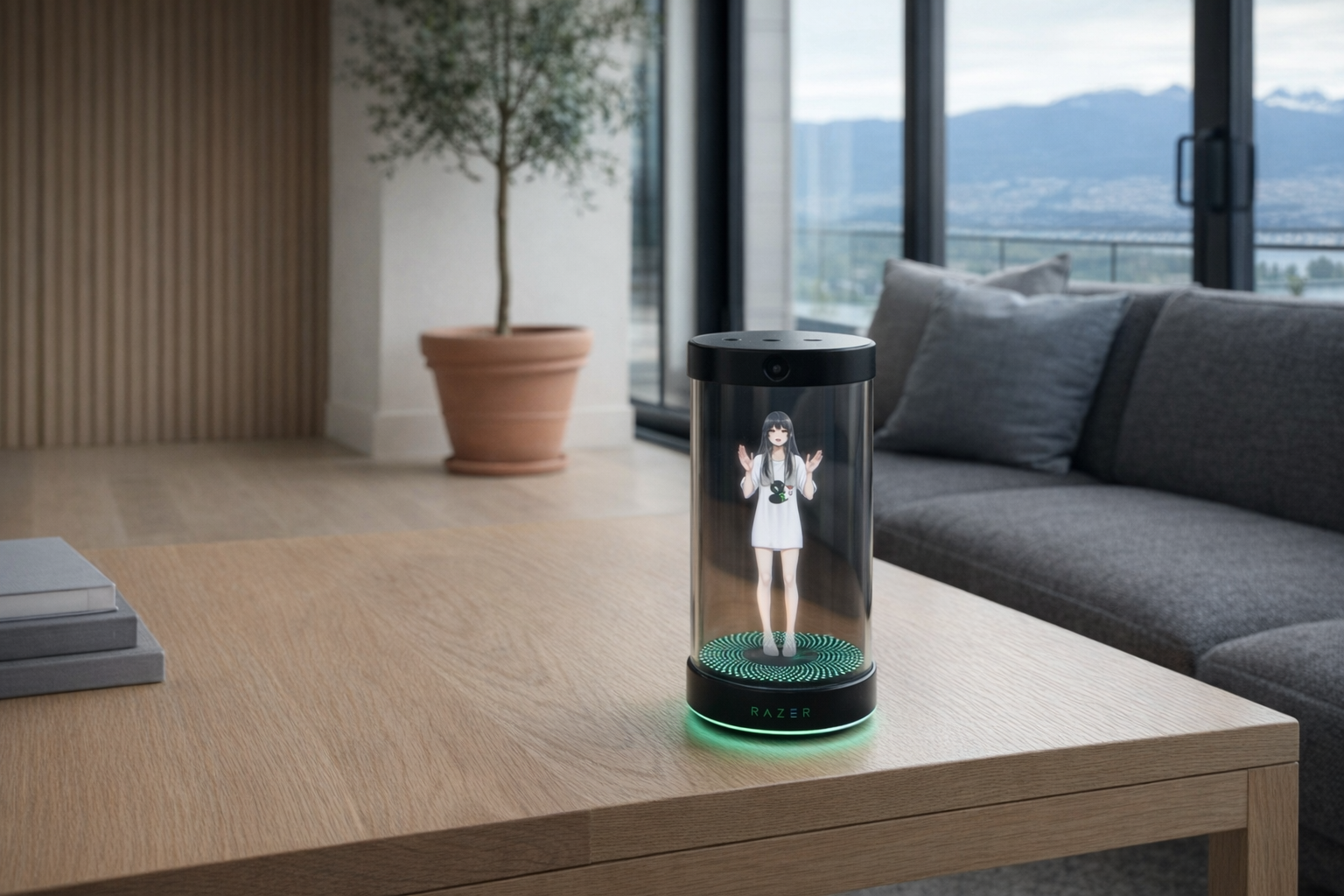
In plain English, the Razer Project AVA is a small, USB-C-connected desk device that gives an AI assistant a physical body. Instead of living as a browser tab or a floating desktop widget, it shows up as a 5.5-inch animated hologram inside a glass cylinder and uses a camera plus dual microphones to stay aware of what is happening on your PC and around your desk. The stated pitch is not just “talk to AI,” but “have a little AI presence next to your screen” that can coach, advise, organize, and react in a more character-like way.
Razer Project AVA is a holographic AI desk companion featuring a 5.5-inch animated hologram display in a glass cylinder design. Powered by xAI's Grok AI engine, it combines esports coaching, personal organization, and professional assistance with natural eye-tracking, facial expressions, and lip sync. Connects via USB-C to Windows PCs with HD camera and dual microphones for screen and environment awareness.
That makes it closer in spirit to the EMO AIBI Pocket Pet than to a plain AI app, but the execution is very different. EMO AIBI is a pocket-style character with pet-like behavior; Razer Project AVA is much more of a stationary PC companion built around screen awareness and a desk display. That likely makes AVA more practical for gamers and desktop users, but less playful and less portable. It is also a more explicitly “computer accessory” kind of device, which is a more honest lane than pretending it can do everything.
Key features at a glance
- 5.5-inch holographic display with animated AI avatars
- Powered by xAI Grok AI engine for conversational assistance
- PC Vision mode for real-time screen analysis
- HD camera and dual microphones for environmental awareness
- Eye-tracking, facial expressions, and lip sync for a more lifelike presence
- Esports coaching, daily organizer, and AI advisor roles in one device
- USB-C connection to Windows PCs rather than standalone operation
How the Razer Project AVA actually works
At a practical level, Razer Project AVA appears to work like a physical endpoint for desktop AI. The device connects to a Windows PC over USB-C, which likely handles both power and data. That matters because AVA does not look like a self-contained robot. It looks more like a peripheral that depends on the attached PC for setup, context, and perhaps some of the heavy lifting around apps and screen access.
There are really three layers to the product.
- The display layer. The 5.5-inch holographic screen in the glass cylinder is the visual hook. This is what turns a normal AI assistant into a “desk companion.” The animated avatars, facial expressions, lip sync, and eye-tracking are all part of making the responses feel embodied rather than text-only.
- The sensing layer. The HD camera and dual microphones give AVA awareness of both the user and the desk environment. According to the listing, it can also analyze your PC in real time through PC Vision mode, which strongly suggests some form of screen-reading or contextual desktop interpretation.
- The AI layer. Razer says it is powered by xAI’s Grok AI engine. In plain terms, that means the conversational intelligence is coming from a cloud-backed AI service rather than the device itself being the “brain.” That is standard for this category, but it also means long-term usefulness depends on software support, account systems, and whatever happens to the underlying AI service over time.
The most interesting feature here is PC Vision mode, because that is the part that moves AVA beyond novelty. If it can actually look at what is happening on your Windows screen and offer context-aware help, that gives it a clearer reason to exist than many desk companions have. For gaming, that could mean on-screen coaching or tactical commentary. For work, it could mean helping interpret what you are doing, surfacing reminders, or acting more like a sidecar assistant than a decorative chatbot. Whether it does that well is a separate question, but the concept is stronger than “it blinks and talks.”
The flip side is obvious: to do any of this, AVA needs broad access to your screen, voice, and nearby environment. That makes it more capable, but also more invasive. As with many AI gadgets, the feature list and the privacy concerns are basically the same list written from two different angles.
A realistic "day in the life" with Razer Project AVA
Because this is an informational explainer rather than a test report, the more useful approach is to ask what a normal day might look like if the listed features behave as advertised.
- Morning. You sit down at your Windows PC, connect or wake AVA, and use it as a visual organizer beside the monitor. Instead of opening a dozen tabs immediately, you might ask for the day’s schedule, a task rundown, or quick reminders. The holographic avatar gives those interactions a little more presence than a voice from a speaker would.
- Midday. While working, AVA’s PC Vision mode could help with context around what is already on screen. If you are researching, writing, or handling repetitive desktop tasks, the appeal is that the assistant can “see” the active context rather than forcing you to explain everything from scratch each time.
- Afternoon. This is where Razer’s esports angle comes in. During a game session, AVA is meant to act as a coach or advisor rather than just a decorative NPC on your desk. If that feature is competent, it could be useful for players who already like overlays, stats tools, or post-match breakdowns.
- Evening. After the productive or gaming part of the day, AVA shifts back into ambient companion mode. The facial expressions, lip sync, and eye-tracking are not productivity features in any serious sense, but they do matter if what you want is a desk object with some personality rather than another hidden background process.
That last point is worth saying plainly: the hologram is not the efficient way to access AI. It is the fun way. If you buy this, that distinction should be clear from the start.
Who the Razer Project AVA is actually for (and who it isn't)
Great fits
- PC gamers with a dedicated setup who already use a Windows desktop as a main hub and like companion displays, RGB gear, and side-screen tools.
- Stream-room and battlestation builders who care about desk aesthetics and want something more interesting than a smart speaker beside the monitor.
- Remote workers who spend all day at one desk and like the idea of a visible, glanceable assistant instead of another app window.
- Early adopters of AI hardware who understand that niche devices live or die by software updates and still enjoy trying them.
- People who want a conversation piece for an office or gaming room and are comfortable paying for novelty plus utility together.
Poor fits
- Anyone on macOS or a mixed-device setup if Windows PC connectivity is central to how AVA works.
- Privacy-sensitive households that do not want an HD camera and dual microphones pointed into the room.
- Users who just need answers from AI cheaply because a browser tab, Copilot, ChatGPT, or another desktop app will do that for far less money.
- People expecting a smart-home hub with broad home control; this looks much more like a PC accessory than a home-automation command centre.
- Minimalists with small desks who do not want another powered object, cable, and glowing display taking up space.
Practical trade-offs
Privacy and screen awareness
This is the biggest real-world issue. Razer is explicitly pitching screen analysis, an HD camera, and dual microphones. That means AVA is not just hearing prompts; it is meant to be aware of what is on your PC and around your desk. For some users that is the whole point. For others, it is an immediate no.
If you handle sensitive work, private messages, financial information, or client material on the same machine, you need to look very closely at permissions, retention policies, and account settings. A feature called PC Vision mode may be useful, but it should also make you ask exactly what data is being captured, processed, and stored. That is a calmer and more useful question than “is AI the future?”
Desk space, cables, and setup friction
AVA’s glass cylinder design and 5.5-inch holographic display are a big part of the appeal, but they also make it a physical desk object, not a lightweight software add-on. It will need a stable spot near your PC, access to USB-C, and enough visual space that the avatar effect is actually visible.
That sounds minor until you look at a real desk. Many gaming or work setups are already crowded with monitors, stands, webcams, speakers, chargers, and streaming gear. AVA makes the most sense on a fairly deliberate setup where another device is welcome. On a cramped student desk or a kitchen table workspace, it may feel like one more thing to manage.
Long-term support and AI dependency
A product like this lives or dies by software. The hardware can be charming, but the real value is tied to xAI’s Grok AI engine, Windows integration, and whatever Razer continues to do with updates. That means the buying decision should include a little skepticism.
At roughly $275 CAD, this is not outrageously priced for a niche tech accessory, but it is still expensive enough that long-term support matters. Evaluate it like a premium peripheral, not like a lamp or figurine. If the software gets better, it becomes more useful. If support stalls, you are left with a very elaborate conversation piece.
Where the Razer Project AVA fits in a smart home
Razer Project AVA does not really sit at the centre of a smart home. It fits better as part of a desk ecosystem inside a broader home-tech setup.
A more realistic arrangement looks like this:
- Your Windows PC remains the real computing hub.
- ChatGPT, Microsoft Copilot, Discord, Steam, OBS, or game launchers continue to handle the actual apps and workflows.
- Smart-home control stays with Alexa, Google Home, Apple Home, or a Matter-compatible hub.
- Razer Project AVA lives beside the monitor as the visual AI layer — the thing that adds character, context, and sidekick energy.
That is the healthiest way to think about it. AVA is not the device that should run your lights, manage your thermostat, or replace your phone assistant. It is more like the personality-forward extension of a desktop setup. If you already have Razer gear, RGB lighting, a webcam, a mechanical keyboard, and a “battlestation” mindset, it fits naturally. If your home-tech philosophy is “the best gadget is the one I forget exists,” it does not.
The buying decision, in plain terms
Before buying, three questions do most of the work here:
- Do you actually want a physical AI companion, or do you just want AI answers? If it is the second one, software alone is cheaper and simpler.
- Are you comfortable giving a desk device access to your screen, your voice, and a camera view of your room? If not, AVA’s main strengths become its main dealbreakers.
- Does the hologram form factor genuinely add value to your setup? If the answer is no, the product starts looking like a decorative wrapper around functions you can already get elsewhere.
If those answers are mostly yes, Razer Project AVA looks like a plausible luxury desk gadget. If even one is a hard no, skip it and stick with software.
Got Questions About the Razer Project AVA? Let's Clear Things Up.
Is this a hands-on review?
No. This is an informational explainer based on Razer’s listed details and what those features likely mean in practice. It is meant to clarify the product category and trade-offs, not replace real-world testing.
Does the Razer Project AVA work on any computer?
According to the listing, it connects via USB-C to Windows PCs. That suggests Windows is the intended platform, especially because screen-aware features like PC Vision mode depend on desktop integration. If you use a Mac, check Razer’s current compatibility page before assuming support.
What exactly is the hologram part?
The listed hardware includes a 5.5-inch animated hologram display in a glass cylinder. In practical terms, that means the AI avatar is presented as a small visual figure or face rather than just text on a screen. It is mainly about presence and presentation, not raw productivity.
Is Razer Project AVA mainly for gaming?
Gaming is clearly a major part of the pitch, especially with the esports coaching angle, but it is not the only use case. Razer also describes it as a daily organizer and professional assistant, so the broader idea is a desk companion for both play and work. Still, the Razer branding and styling make gamers the most obvious target audience.
Where can I verify the current specs or buy it?
The best place to verify current details, compatibility notes, and any changes to features is Razer’s official page: Razer Project AVA. Since AI features and product pages can change over time, that is smarter than relying on old screenshots or launch coverage.
Does it need the cloud to be useful?
The listing says it is powered by xAI’s Grok AI engine, which strongly suggests cloud-backed AI is central to the experience. That usually means the smartest conversational features depend on online services. Check Razer’s latest documentation for any offline functions, but it is safest to assume internet connectivity is important.
What does it cost in Canada?
At the time of writing, the listed price is roughly ~$275 CAD. As with most niche tech accessories, pricing can shift, so verify the current amount on the official store page before buying.
Where is the Celmin Directory listing for this product?
For a catalog-style view of the same product — structured specs, pros and cons, similar picks, and FAQ — see Razer Project AVA on Celmin Directory.
If you're building a smarter home in Canada and want honest explainers on gadgets worth considering — plus the ones worth skipping — Celmin covers the full catalog without the marketing theater. More reviews, comparisons, and buyer guides at https://celmin.ca.
Discussion
Sign up or sign in to join the conversation.