
Multi-room audio means playing the same song in your kitchen, living room, and bedroom—all perfectly in sync. Or playing different music in different rooms, controlled from your phone. It turns your home into a seamless listening experience where music follows you from room to room.
Multi-room audio means playing the same song in your kitchen, living room, and bedroom—all perfectly in sync. Or playing different music in different rooms, controlled from your phone. It turns your home into a seamless listening experience where music follows you from room to room.
Setting it up is easier than you'd think. Here's how to do it with every major platform available in Canada.

Choose Your Platform
The Big Four
| Platform | Speakers | Sync Quality | Multi-Source | Price Range |
|---|---|---|---|---|
| Sonos | Sonos speakers | Excellent | Yes (different music per room) | $249-1,199 CAD |
| Amazon Alexa | Echo speakers | Good | Yes | $39-340 CAD |
| Google Home | Nest speakers | Good | Yes | $35-315 CAD |
| Apple AirPlay 2 | HomePod, AirPlay speakers | Very Good | Yes | $129-399 CAD |
Which Platform Is Right for You?
- Best sound quality: Sonos
- Best value: Amazon Echo
- Best for Apple users: AirPlay 2
- Best assistant integration: Google Home
- Most flexible: Sonos (works with all assistants)
Setting Up Sonos Multi-Room Audio
What You Need
- 2+ Sonos speakers (any combination: Era 100, Era 300, Roam 2, Arc Ultra, etc.)
- Sonos app (iOS or Android)
- WiFi network
Steps
- Set up each speaker in the Sonos app. Plug in the speaker, open the app, and follow the setup wizard. Each speaker connects to your WiFi.
- Name each speaker by room: "Living Room," "Kitchen," "Bedroom." This is how you'll control them.
- Group speakers for synchronized playback:
- Open the Sonos app
- Tap the Group icon on any speaker's Now Playing screen
- Select which rooms to include
- Music plays in sync across all selected rooms
- Play different music in different rooms:
- Each room can play its own source independently
- Tap a room, choose its music, then tap another room and choose different music
Sonos Stereo Pairing
Two identical Sonos speakers can be paired as a stereo pair for left/right separation:
- Sonos app → Settings → System → select a room → Create Stereo Pair
- Works with Era 100, Era 300, and other compatible models
Sonos has the best multi-room sync in the business. The speakers stay perfectly in sync even across 10+ rooms. If audio quality and reliability are your top priorities, Sonos is the way to go.
Setting Up Amazon Alexa Multi-Room Audio
What You Need
- 2+ Amazon Echo speakers
- Alexa app (iOS or Android)
Steps
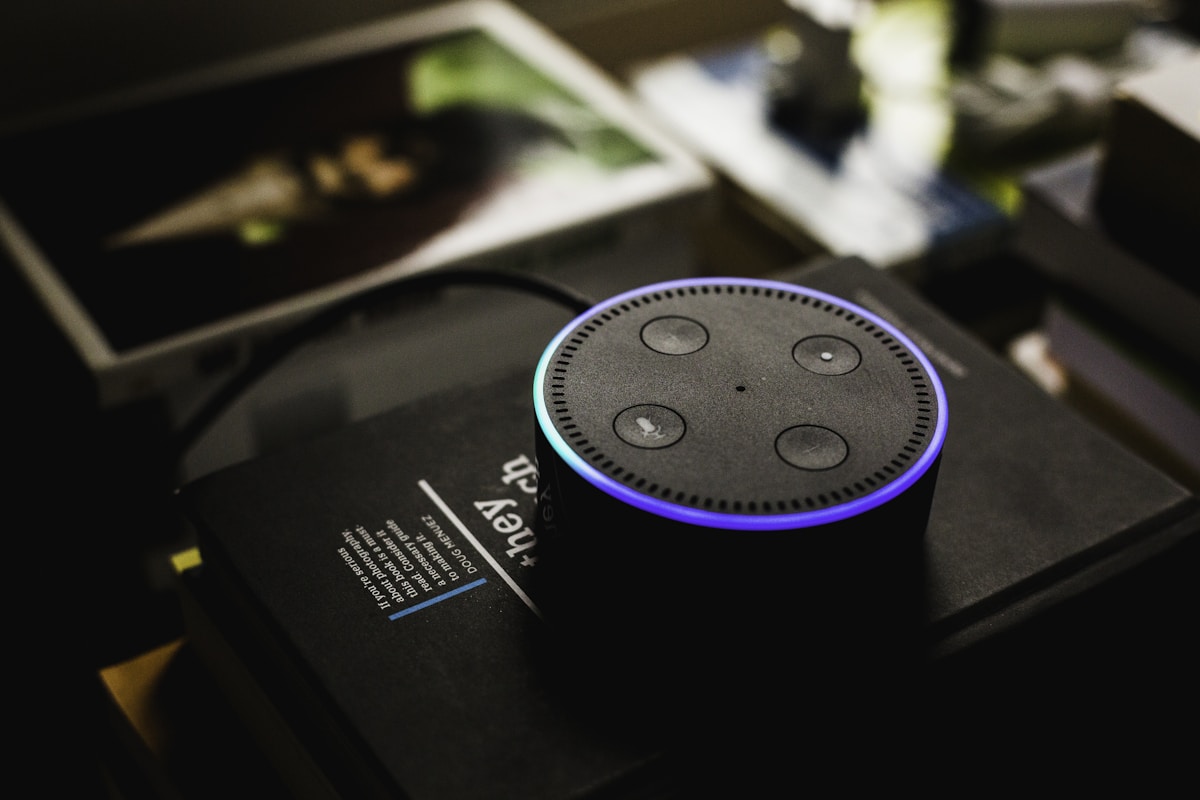
- Set up each Echo in the Alexa app. Assign each to a room.
- Create a speaker group:
- Alexa app → Devices → + → Add Group → Multi-Room Music
- Name the group (e.g., "Everywhere," "Downstairs")
- Select which Echo devices to include
- Play music to the group:
- "Alexa, play jazz in Everywhere"
- "Alexa, play music Downstairs"
- Or tap the group in the Alexa app and select music
- Play different music per room:
- "Alexa, play rock in the kitchen"
- "Alexa, play classical in the bedroom"
Alexa Stereo Pairing
Two identical Echo speakers can be paired as stereo:
- Alexa app → Devices → select an Echo → Stereo Pair/Subwoofer → Create Stereo Pair
Setting Up Google Home Multi-Room Audio
What You Need
- 2+ Google Nest speakers or displays
- Google Home app (iOS or Android)
Steps
- Set up each speaker in the Google Home app. Assign to rooms.
- Create a speaker group:
- Google Home app → Devices → + → Create speaker group
- Name the group and select speakers
- Play music:
- "Hey Google, play music on [group name]"
- Or cast from any Chromecast-compatible app
- Different music per room:
- "Hey Google, play pop in the kitchen"
- "Hey Google, play lo-fi in the office"
Setting Up Apple AirPlay 2 Multi-Room Audio
What You Need
- 2+ AirPlay 2 speakers (HomePod, HomePod mini, Sonos, some Samsung TVs)
- iPhone, iPad, or Mac
- All devices on the same WiFi network
Steps
- Set up each speaker in the Home app. Assign to rooms.
- Group speakers for playback:
- Open Control Centre on iPhone → long-press the music widget
- Tap the AirPlay icon (triangle with circles)
- Select multiple speakers to play simultaneously
- Different music per room:
- Open the Home app → tap a room → select music for that room
- Each AirPlay 2 speaker can play independently
AirPlay 2 Advantage
AirPlay 2 works across brands. You can group a HomePod mini, a Sonos Era 100, and a Samsung TV into one multi-room group. No other platform offers this cross-brand flexibility.
Mixing Platforms
Can You Mix Sonos and Echo?
Not for synchronized multi-room audio. Each platform manages its own speakers. However:
- Sonos speakers support Alexa voice control (you can say "Alexa, play music on Sonos Living Room")
- Sonos speakers support AirPlay 2 (you can include them in Apple multi-room groups)
- You can't group a Sonos speaker with an Echo speaker for synchronized playback
The Practical Approach
| Room | Speaker | Why |
|---|---|---|
| Living room | Sonos Era 300 | Best sound for main listening |
| Kitchen | Echo Show 8 | Smart display + voice control |
| Bedroom | HomePod mini | Apple alarm + sleep sounds |
| Bathroom | Echo Pop | Cheap, voice control for music |
| Office | Sonos Era 100 | Good sound for focused work |
This mixed setup works fine—you just can't sync all of them together. Each platform syncs within its own ecosystem.
Optimizing Your Setup
WiFi Requirements
Multi-room audio is bandwidth-light but latency-sensitive. Requirements:
- Stable WiFi in every room with a speaker
- Mesh WiFi recommended for large homes
- 5 GHz preferred for lower latency
- Avoid WiFi dead zones—a speaker with weak WiFi will drop out of sync
Speaker Placement
- Kitchen: Counter-height, away from the sink and stove
- Living room: Ear-height when seated, away from walls for better soundstage
- Bedroom: Nightstand or shelf
- Bathroom: High shelf (away from water)
📺 Watch: Multi-Room Audio Setup Guide 2026
Got Questions About Multi-Room Audio? Let's Clear Things Up.
How much does a multi-room audio setup cost?
Budget setup (3 Echo Pops): ~$120 CAD. Mid-range (3 Sonos Era 100s): ~$750 CAD. Premium (Sonos Era 300 + 2x Era 100): ~$1,100 CAD. Start with two speakers and expand over time.
Does multi-room audio use a lot of WiFi bandwidth?
No. Audio streaming uses very little bandwidth—about 1-3 Mbps per speaker. Even with 10 speakers playing simultaneously, it's less bandwidth than one Netflix stream. The key requirement is stable, low-latency WiFi, not high bandwidth.
Can I use multi-room audio with Spotify?
Yes. Spotify Connect works with Sonos, Alexa, and Google speakers natively. Select the speaker or group in the Spotify app and it plays directly. Apple Music works with AirPlay 2 and Sonos. Amazon Music works with Alexa and Sonos.
What if one speaker loses connection?
The other speakers continue playing. When the disconnected speaker reconnects, it rejoins the group. Sonos handles this most gracefully—it re-syncs automatically. Alexa and Google may require you to re-add the speaker to the group.
Multi-room audio transforms how you experience music at home. Start with two speakers in the rooms you use most, pick your platform, and expand from there. Sonos for sound quality, Echo for value, AirPlay for Apple users.
🔊
Take Our Free Smart Speaker Finder Quiz
Answer a few quick questions and get personalized recommendations.
Start Quiz →

Discussion
Sign up or sign in to join the conversation.